

Picture this: It’s month-end, you’re updating your quarterly forecast, and you have fresh data from twelve different business units. You’ve carefully filtered your Excel template to show only the “Plan” columns while hiding the “Actual” data. You copy your continuous forecast range, paste it into what should be the perfect destination… and watch in horror as Excel completely ignores your filters, pasting data into both visible and hidden cells, creating a complete mess of your carefully structured model.
If this scenario sounds painfully familiar, you’re not alone. This is one of the most frustrating limitations that FP&A professionals face daily when working with filtered data in Excel.
The Hidden Cell Paste Problem
Excel’s default paste behavior has a fundamental flaw when working with filtered or hidden ranges. When you paste data, Excel treats hidden cells as if they don’t exist during selection but then pastes sequentially through all cells, including hidden ones. This creates a maddening disconnect between what you see and what actually happens.
Here’s the specific pain point that countless financial professionals encounter:
- Source data: You have continuous forecast data (January through December, for example)
- Destination structure: Your template alternates between Plan and Actual columns (Plan Jan, Actual Jan, Plan Feb, Actual Feb, etc.)
- Current state: Actual columns are hidden because you only want to update Plan values
- The problem: Excel pastes your 12-month forecast into Plan Jan, Actual Jan, Plan Feb, Actual Feb… completely ignoring your intent
The same issue occurs with rows. Imagine you have filtered data to show only specific cost centers, but when you paste your budget updates, Excel pastes into both visible and hidden rows, misaligning your carefully prepared data.
A Smart Solution: Custom VBA Automation
Enter the MacroForPastingValuesAndFormulas—a custom VBA solution that intelligently handles copy-paste operations while respecting your data visibility preferences. This macro offers two distinct modes designed for different use cases:
Option 1: Paste Values into Visible Cells Only
This option takes continuous source data and pastes values into visible destination cells, automatically skipping hidden rows and columns. Perfect for updating forecast values, budget figures, or any numerical data.
Option 2: Copy Formulas into Visible Cells with Dynamic Adjustment
This option copies a formula from one cell and applies it to visible destination cells, automatically adjusting cell references. Ideal for applying calculations, ratios, or complex formulas across filtered ranges.
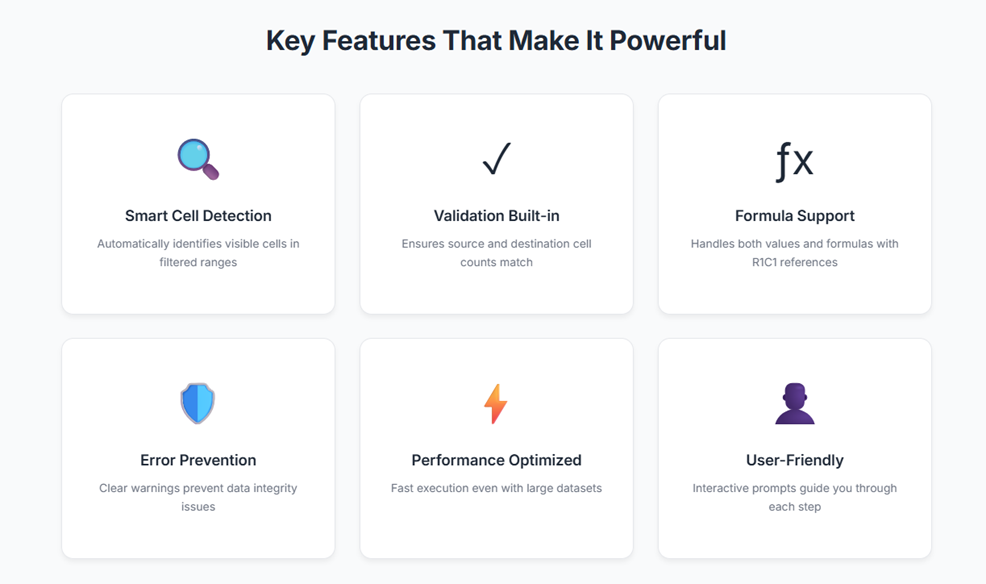
- Cross-Workbook Functionality: Seamlessly works between different Excel files
- Non-Continuous Range Support: Handle complex selection patterns with ease
- Cell count validation: Automatically checks that visible source and destination cells match
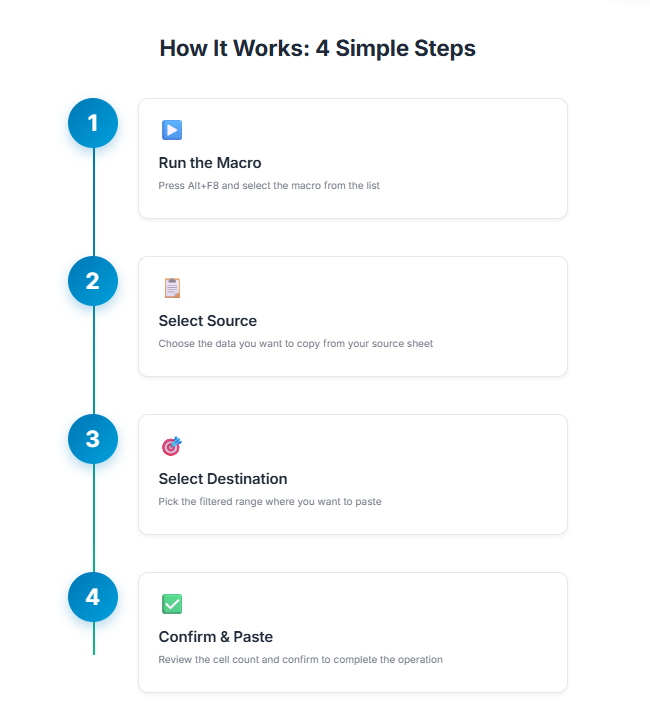
How It Works: Step-by-Step Walkthrough
The macro’s intuitive interface makes it accessible to users of all technical levels. Here’s the complete workflow:
Accessing the Macro
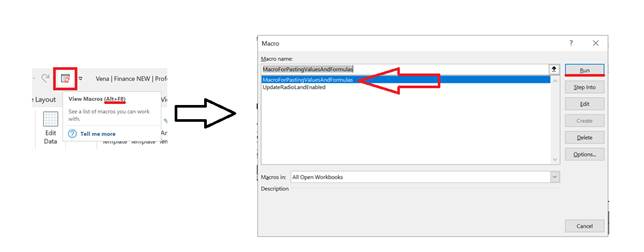
Launch the macro using Alt+F8 or add it to your Quick Access Toolbar for one-click access. The familiar Excel macro dialog appears, showing “MacroForPastingValuesAndFormulas” in the available macros list.
Choosing Your Mode
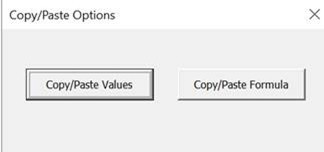
Upon execution, a clean dialog presents two large buttons: “Copy/Paste Values” and “Copy/Paste Formulas.” This decision point determines how the macro handles your data transfer.
Range Selection Process
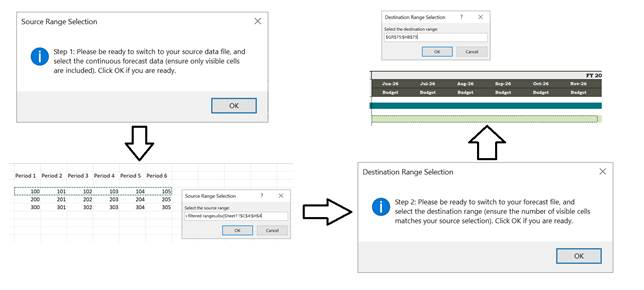
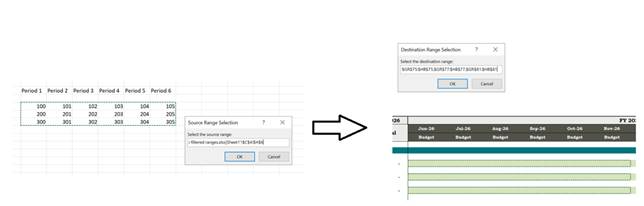
The macro guides you through selecting your source range first, then your destination. What sets this apart from standard Excel operations is the intelligent handling of both continuous and non-continuous ranges. You can select multiple destination areas using Ctrl+Click, and the macro distributes your source data accordingly.
Implementation Best Practices
To maximize the macro’s effectiveness:
- Quick Access Setup: Add the macro to your Quick Access Toolbar for instant availability
- Keyboard Efficiency: Memorize Alt+F8 for rapid macro launching during intensive modeling sessions
- Range Selection Strategy: Plan your destination layout before running the macro to minimize iterations
- Testing Protocol: Always test formula copies in a separate area before applying to production templates
- Version Control: Use the macro in conjunction with proper file versioning to maintain audit trails
Measurable Impact
The productivity gains from this macro are substantial and measurable:
- Time Savings: Tasks that previously required 10 minutes of careful copying and cleanup now complete in 30 seconds
- Accuracy Improvement: Elimination of manual row deletion reduces human error
- Scalability: Complex multi-range operations that were previously avoided become routine
- Template Integrity: Maintains clean, professional-looking financial models
Beyond the Macro: A Philosophy of Smart Automation
This macro represents more than just a technical solution—it embodies the principle that small, targeted automations compound into massive productivity gains. In an era where FP&A professionals are expected to do more with less, these efficiency improvements aren’t luxuries; they’re necessities.
The macro also demonstrates how custom VBA solutions can bridge gaps in Excel’s native functionality without requiring complex enterprise software. Sometimes the most elegant solutions are the simplest ones, built by practitioners who understand the daily challenges of financial analysis.
What repetitive Excel tasks are slowing down your team? The mindset that created this macro—identifying pain points and building targeted solutions—can be applied to countless other workflow inefficiencies. The question isn’t whether automation can help, but rather which automation to build first.
Ready to transform your Excel workflows? Start by identifying your most time-consuming operations and consider how smart automation could eliminate the friction.
Feel free to reach out if you’d like help implementing this macro or discussing other Excel automation opportunities for financial planning.