

Hello, everyone! Welcome to our blog about Excel 365! Here, we’ll share the latest news about Excel and some of our favorite formula tricks. Today, we’re going to talk about a new function that was announced at the end of August 2024 called TRIMRANGE. Some people might not have heard about it, but others are excited to use it in their formulas.
So, let’s start by understanding what it is and how it works:
The TRIMRANGE function is designed to remove empty rows and/or columns on either side of a specified range. In the example below, we’ve used TRIMRANGE to calculate the length of any text entered in column A.
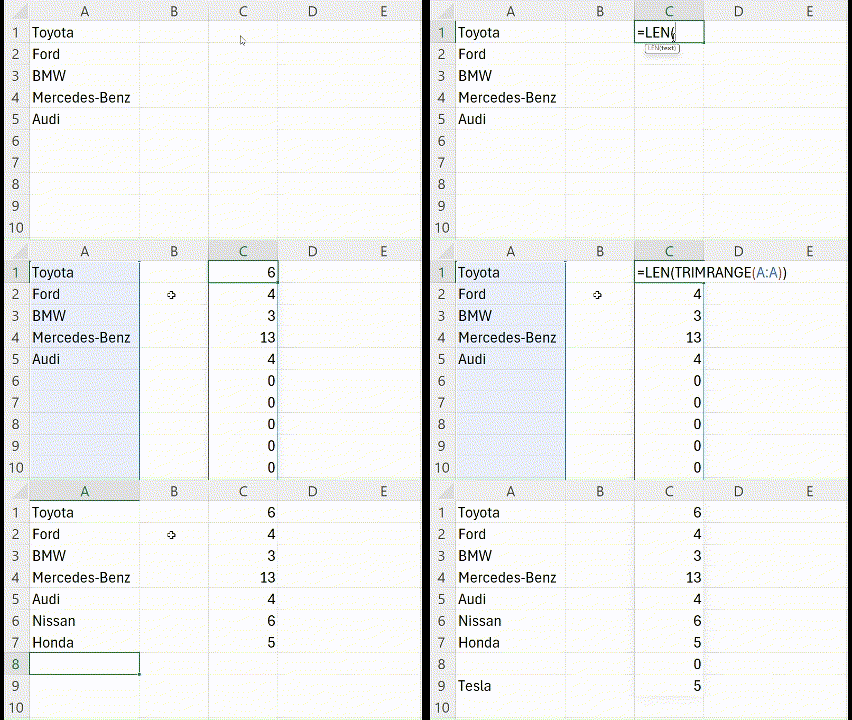
Without using TRIMRANGE, the formula =LEN(A:A) processes every cell in column A, returning a million unnecessary results. Previously, to handle such tasks efficiently, you either had to reference a static range or address each cell individually. Now, with TRIMRANGE, Excel automatically limits the processing to the relevant range, significantly optimizing performance.
Let’s look more closely at the structure of the function:
=TRIMRANGE(range,[trim_rows],[trim_cols])
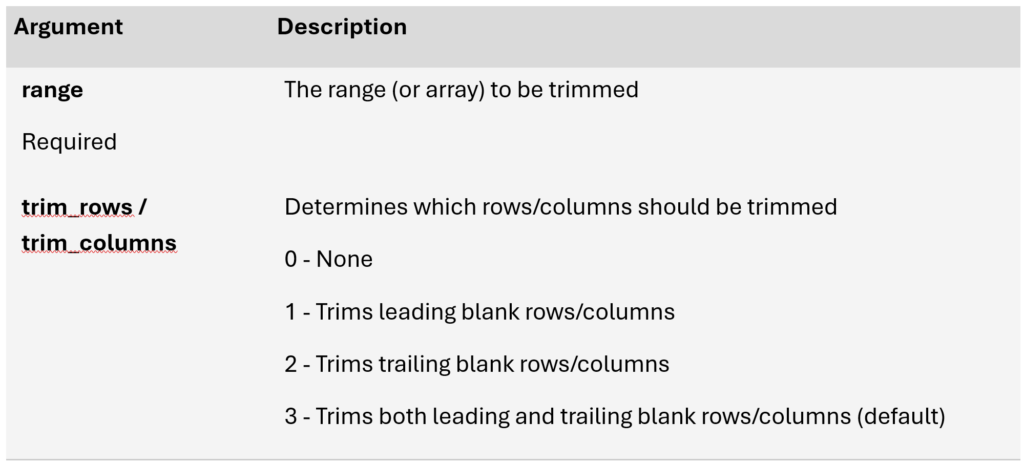
In the basic scenario, the data range is trimmed on all sides, removing empty rows and columns. As the table above shows, you can use the optional arguments to change the function so that it works the way you need it to. It’s great that the developers have thought about different ways people might use this function.
But what surprised everyone the most was the upgrade to the syntax for referencing ranges. Say «Hello» to Trim Reference, also known as Trim Refs. Now, you can use the TRIMRANGE function without having to call it explicitly by adding extra dots around the colon (:). There are three available modes for processing. Here are some examples of the syntax and its equivalents using TRIMRANGE’s additional arguments:
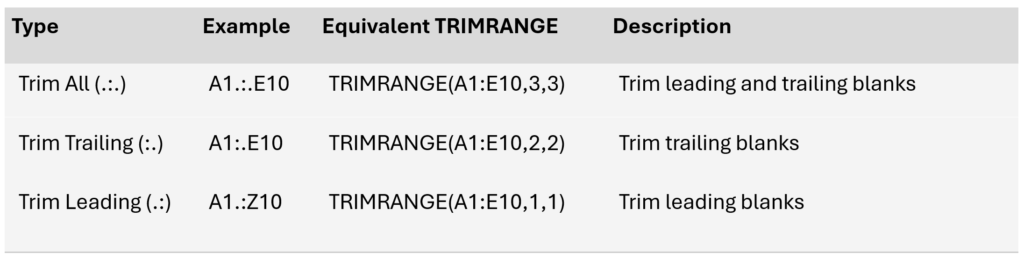
Below is an example demonstrating how Trim Refs works:

Additionally, this syntax can also be applied to references for entire rows or columns (e.g., A:A or 3:3).
The TRIMRANGE function and its short version (Trim Refs) have an important advantage: they can create a dynamic range. This dynamic range works well with the modern, powerful features of Excel 365, making data processing more efficient and flexible.
That’s all for today! Check back for more tips and updates on our blog. See you again soon! 😉